How a Browser Works: A Beginner-Friendly Guide to Browser Internals
What Happens Behind the Scenes When You Open a Website

You type "google.com" into your browser, press Enter, and within milliseconds a fully interactive webpage appears on your screen.
Ever wondered what actually happens in those milliseconds?
Most people think of a browser as "the thing that opens websites." That's like calling a car "the thing that moves." Technically true, but it misses the fascinating machinery underneath.
Your browser is performing an incredibly complex dance every time you load a page. It's fetching files from servers across the internet, parsing thousands of lines of code, building internal data structures, calculating layouts, and painting millions of pixels—all coordinated with split-second precision.
Let's pull back the curtain and see how browsers actually work.
What Actually Happens When You Press Enter?

Let's start with the question every web developer should understand:
You type "https://www.example.com" into the address bar and press Enter. What happens next?
Here's the simplified journey:
The browser looks up the IP address for "example.com"
It establishes a connection to the server
It requests the webpage files (HTML, CSS, JavaScript, images)
It receives the HTML and starts parsing it
It discovers CSS and JavaScript files referenced in the HTML
It fetches those files while continuing to parse
It builds internal structures representing the page
It calculates where everything should appear
It paints pixels to your screen
It executes JavaScript that might modify everything
It repeats steps 7-10 as needed
Each of these steps involves multiple components working together. Let's understand what those components are.
What is a Browser, Really?
A browser is a software application that retrieves, interprets, and displays web content.
But more specifically, a browser is a collection of specialized components, each with a specific job:
A user interface that you interact with
A networking component that fetches files from the internet
A rendering engine that converts HTML and CSS into visual elements
A JavaScript engine that executes code
Data storage for cookies, cache, and local data
Various helper systems coordinating everything

Think of it like a restaurant kitchen. You have chefs (rendering engine), waiters (networking), a manager coordinating everything (browser engine), and the dining room where customers interact (user interface). Each role is essential, and they must work together seamlessly.
Main Components of a Browser
Let's break down the major parts:
1. User Interface
This is everything you see and interact with except the actual webpage content:
Address bar where you type URLs
Back and forward buttons
Refresh button
Bookmarks bar
Tab management
Settings menus
Extensions icons
The user interface is separate from the webpage itself. When a page crashes, the browser UI still works. When you're typing in the address bar, you're interacting with the browser, not any particular website.
2. Browser Engine
The browser engine coordinates between the user interface and the rendering engine.
When you click the back button, the browser engine tells the rendering engine to load and display the previous page. When you refresh, it instructs the rendering engine to reload the current page.
Think of it as the manager who receives requests from customers (the user) and communicates them to the kitchen staff (the rendering engine).
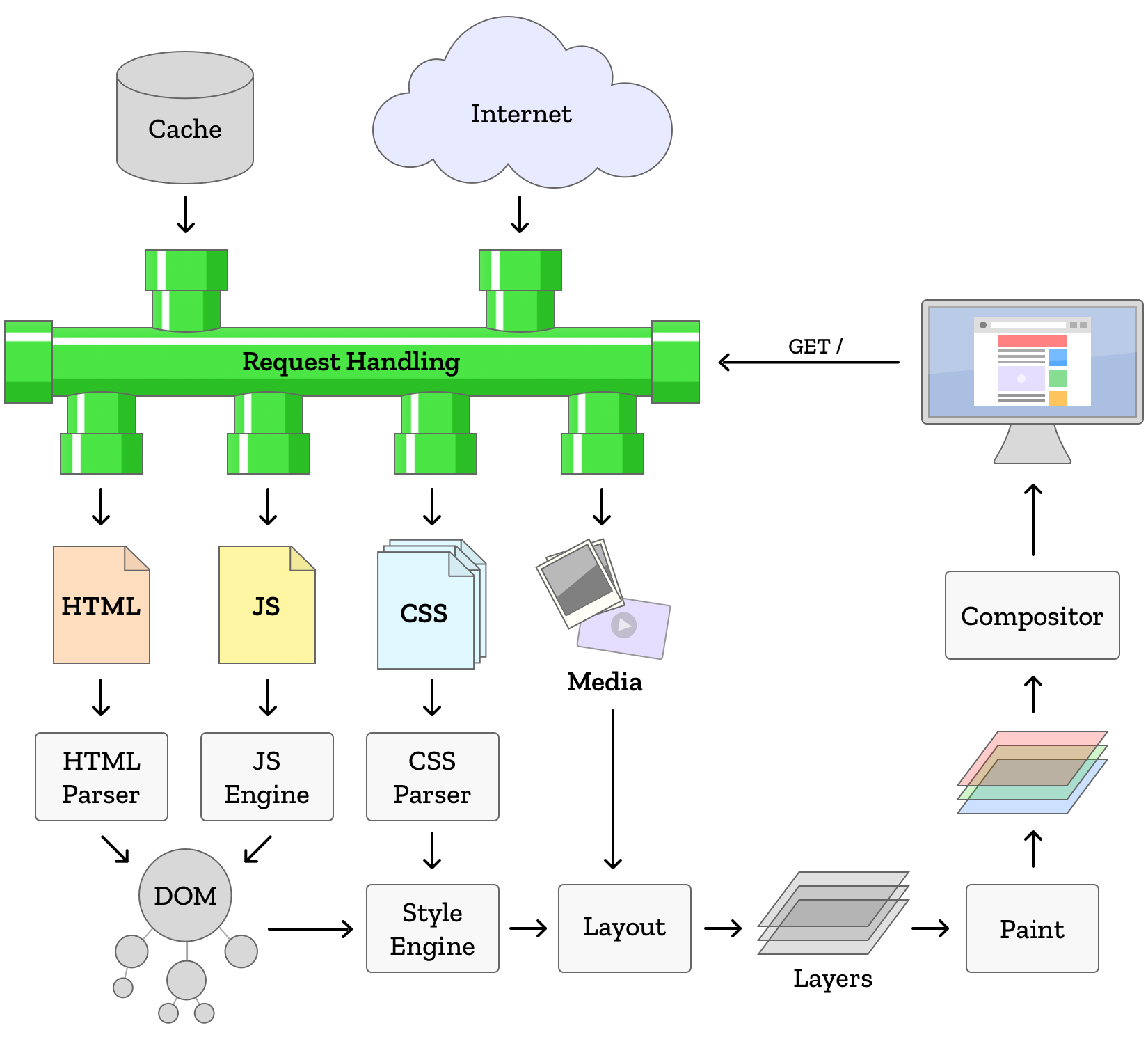
3. Rendering Engine
This is where the magic happens. The rendering engine takes HTML, CSS, and images and converts them into the visual webpage you see.
Different browsers use different rendering engines:
Chrome and Edge use Blink
Firefox uses Gecko
Safari uses WebKit
The rendering engine's job is complex:
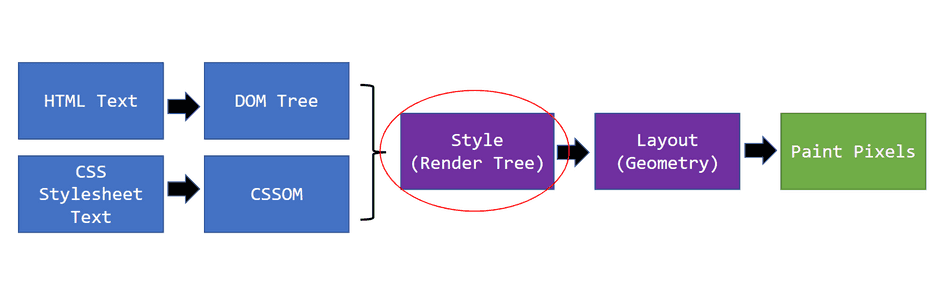
Parse HTML into a DOM tree
Parse CSS into a CSSOM
Combine them into a render tree
Calculate layout (where everything goes)
Paint pixels to the screen
We'll explore this process in detail shortly.

4. Networking Component
This handles all communication with web servers:
DNS lookups to find IP addresses
HTTP/HTTPS requests
Managing connections
Handling redirects
Caching resources
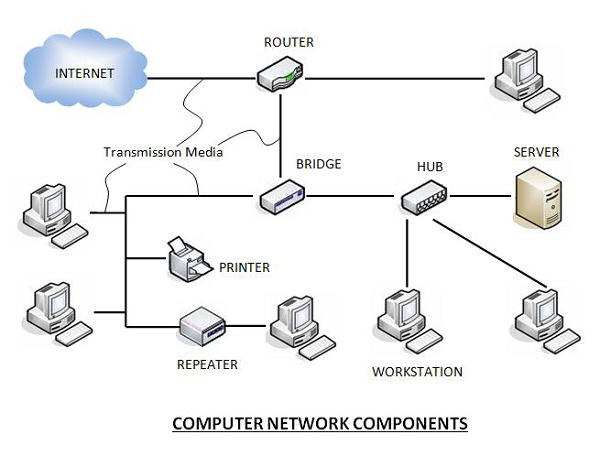
When you request a webpage, the networking component fetches the HTML file. As the rendering engine parses that HTML and discovers references to CSS files, images, and scripts, the networking component fetches those too.
5. JavaScript Engine
This is a separate component that executes JavaScript code.
Different browsers use different JavaScript engines:
Chrome and Edge use V8
Firefox uses SpiderMonkey
Safari uses JavaScriptCore
The JavaScript engine compiles and executes JavaScript, which can manipulate the DOM, handle user interactions, make network requests, and perform calculations.
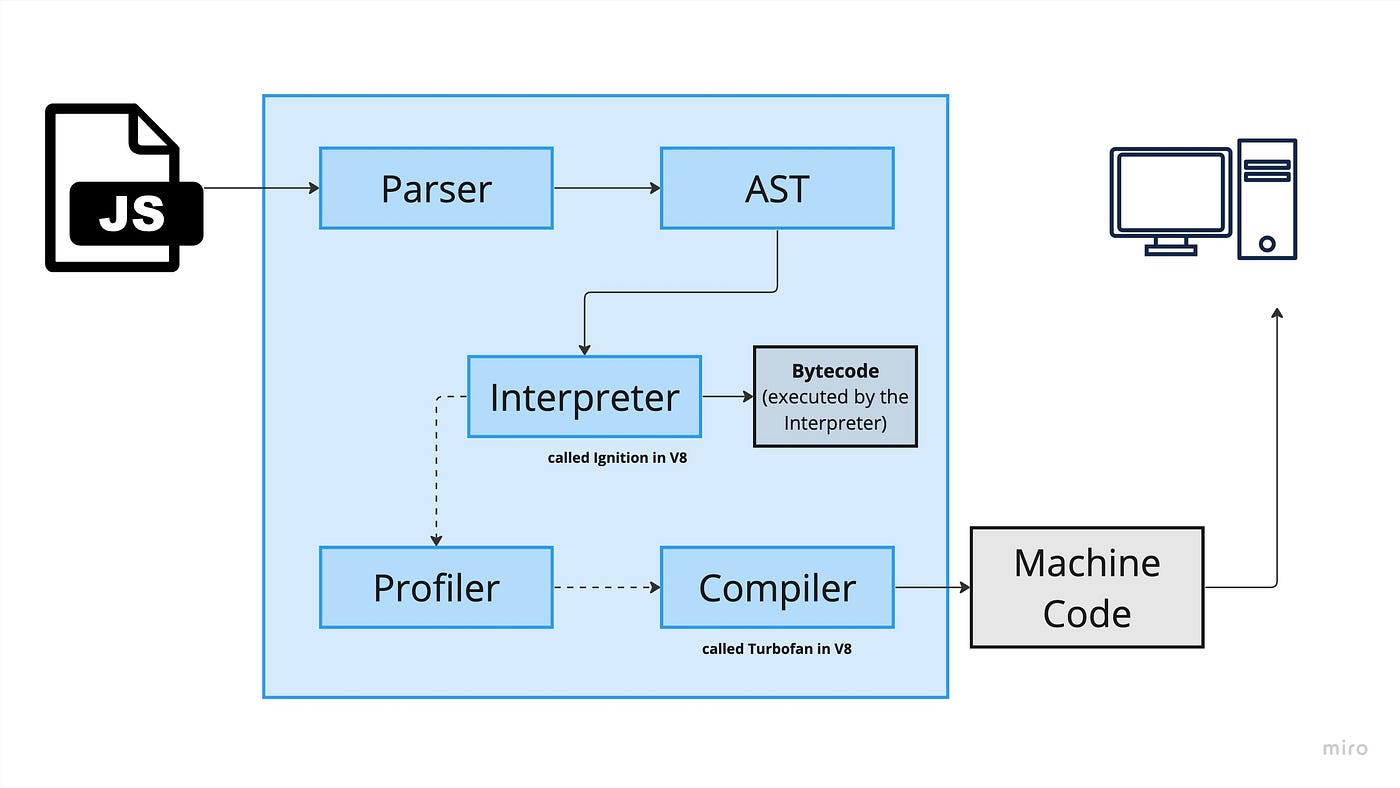
JavaScript execution can trigger re-rendering, as scripts often modify the page structure or styles after the initial load.
6. Data Persistence
Browsers store various types of data locally:
Cookies
LocalStorage and SessionStorage
IndexedDB
Cache
Bookmarks and history

This layer manages reading and writing this data, enforcing security policies, and cleaning up expired data.
The Rendering Pipeline: From HTML to Pixels
Now let's walk through the most important process: how a browser turns HTML and CSS into the webpage you see.
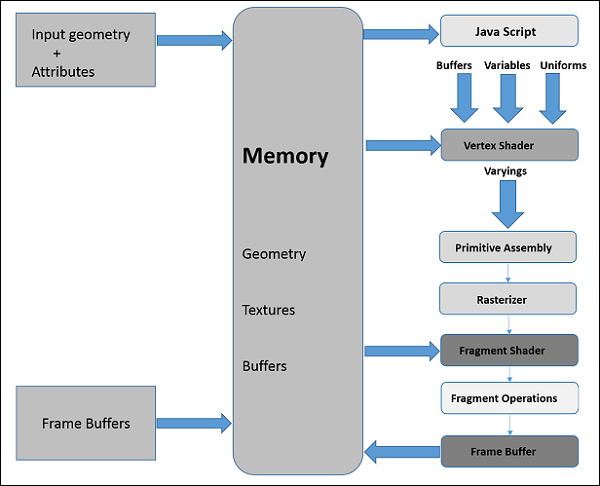
Step 1: Networking - Fetching the HTML
When you navigate to a URL, the first thing the browser needs is the HTML document.

The HTML arrives as a stream of bytes. The rendering engine can start processing it before the entire file has downloaded—this is called progressive rendering and it's why large pages can start appearing before they're fully loaded.
Step 2: HTML Parsing and DOM Creation
The rendering engine receives raw HTML text. Its first job is to parse this text and build a data structure it can work with.
What is parsing?
Parsing means analyzing text according to grammatical rules and extracting meaning.
Simple parsing example:
Consider the mathematical expression: 3 + 4 * 5
A parser would break this down into a structure:

This tree structure makes it clear that multiplication happens before addition (following operator precedence rules).
HTML parsing works similarly.
HTML input:
<!DOCTYPE html>
<html>
  <head>
    <title>My Page</title>
  </head>
  <body>
    <h1>Welcome</h1>
    <p>This is a paragraph.</p>
  </body>
</html>
DOM tree output:
Document
  └─ html
      ├─ head
      │   └─ title
      │       └─ "My Page"
      └─ body
          ├─ h1
          │   └─ "Welcome"
          └─ p
              └─ "This is a paragraph."
This tree structure is called the DOM (Document Object Model).
Each HTML element becomes a node in the tree. The structure reflects the nesting of elements in the HTML. Parent-child relationships are preserved.
Why build a tree?
Trees are efficient for searching, traversing, and modifying. JavaScript can easily manipulate this tree (changing text, adding elements, removing nodes). The rendering engine can traverse this tree to build the visual representation.
The DOM is a live data structure. When JavaScript modifies it, those changes immediately affect what gets rendered.
Step 3: Discovering External Resources
As the parser builds the DOM, it discovers references to external resources:

When the parser encounters these, it hands the URLs to the networking component to fetch them.
Important behavior:
CSS files block rendering (the browser waits for them before displaying content)
JavaScript files can block parsing (the browser stops parsing HTML until the script loads and executes)
Images don't block rendering (the page displays while images load)
This is why you often see this pattern:
<head>
  <link rel="stylesheet" href="styles.css">
</head>
<body>
  <!-- Content -->
  <script src="app.js"></script>
</body>
CSS in the head (needed for initial render), JavaScript at the bottom (doesn't block initial display).
Step 4: CSS Parsing and CSSOM Creation
When the browser receives a CSS file, it parses it similarly to HTML.
CSS input:

This gets parsed into a tree structure called the CSSOM (CSS Object Model).
The CSSOM represents all the styles that apply to the document. It includes:
Styles from external stylesheets
Styles from
<style>tagsInline styles from
styleattributesDefault browser styles (user agent stylesheet)
The CSSOM organizes styles by selector, making it efficient to determine which styles apply to which elements.
Why CSS blocks rendering:
The browser cannot determine how to display elements until it knows their styles. If it displayed content before receiving the CSS, you'd see a flash of unstyled content, then a jarring shift when styles apply.
To prevent this, browsers wait for CSS to load and parse before rendering.
Step 5: Combining DOM and CSSOM into the Render Tree
Now the browser has two trees:
DOM: the structure and content of the page
CSSOM: the styles that apply to elements
The rendering engine combines these into a third tree: the Render Tree.
The render tree contains only the visible elements with their computed styles.
What's excluded from the render tree?
Elements with
display: none(not rendered at all)<head>and its children (metadata, not visual)<script>tags (not visual elements)
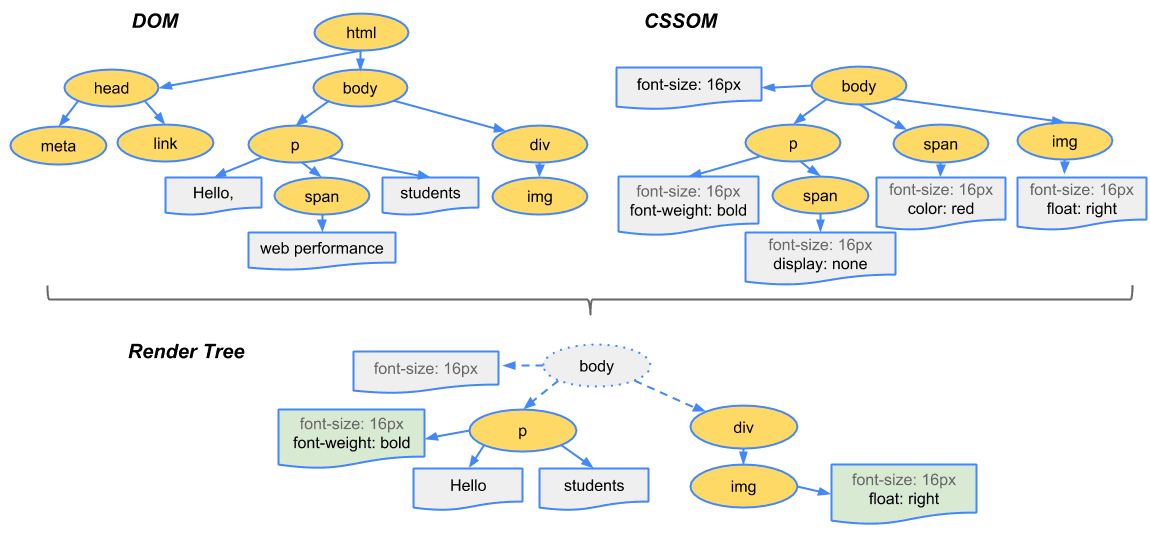
What's included?
Every visible element
Text nodes
Computed styles (inherited properties calculated, relative units converted to pixels)
The render tree represents what will actually appear on screen and how it will look.
Step 6: Layout (Reflow)
The render tree knows what to display and its styles, but it doesn't yet know where to place things.
Layout (also called reflow) is the process of calculating the exact position and size of every element.
The browser walks through the render tree and calculates:
Width and height of each element
X and Y coordinates
How elements affect each other's positions
Example:
<div style="width: 100%; padding: 20px;">
  <p style="margin: 10px;">Hello</p>
</div>
If the viewport is 800px wide:
Outer div: width = 800px, padding adds 40px to height
Paragraph: width = 760px (parent's 800px minus 40px padding), margin creates 10px space around it
This calculation happens recursively through the entire tree.

Layout is expensive computationally. Changing certain properties triggers reflow:
Changing element dimensions
Adding or removing elements
Changing font sizes
Resizing the browser window
Browsers optimize by batching layout operations and using clever caching, but excessive reflows can cause performance problems.
Step 7: Painting
After layout, the browser knows exactly where everything goes. Now it needs to convert that information into actual pixels.
Painting is the process of filling in pixels based on the render tree and layout information.
The browser creates layers and paints each element:
Background colors
Borders
Text
Shadows
Images
Paint order matters. Elements are generally painted from back to front based on their stacking context. CSS properties like z-index affect this order.
Modern browsers optimize painting:
Layers: Elements are painted on separate layers that can be composited together
Dirty rectangles: Only changed portions of the screen are repainted
Hardware acceleration: GPU is used for certain operations
Step 8: Compositing and Display
The final step is compositing—combining all the painted layers in the correct order and displaying the result on screen.
This is where the GPU often helps, especially for:
Animations
Scrolling
Transforms
Opacity changes
The composited result is sent to the display, and you see the webpage.
The Complete Flow Visualized
User types URL and presses Enter
         ↓
    DNS Lookup
         ↓
  Establish Connection
         ↓
  Request HTML File
         ↓
   Receive HTML Bytes
         ↓
┌─────────────────────────────────────┐
│     HTML PARSING                    │
│  Tokenization → DOM Tree            │
│                                     │
│  Discovers: CSS, JS, Images         │
└─────────────────────────────────────┘
         ↓
    Request CSS/JS/Images
         ↓
┌─────────────────────────────────────┐
│     CSS PARSING                     │
│  Tokenization → CSSOM Tree          │
└─────────────────────────────────────┘
         ↓
┌─────────────────────────────────────┐
│     RENDER TREE CONSTRUCTION        │
│  Combine DOM + CSSOM                │
│  (only visible elements)            │
└─────────────────────────────────────┘
         ↓
┌─────────────────────────────────────┐
│     LAYOUT (REFLOW)                 │
│  Calculate position and size        │
│  of every element                   │
└─────────────────────────────────────┘
         ↓
┌─────────────────────────────────────┐
│     PAINTING                        │
│  Fill in pixels for each element    │
│  Create layers                      │
└─────────────────────────────────────┘
         ↓
┌─────────────────────────────────────┐
│     COMPOSITING                     │
│  Combine layers in correct order    │
└─────────────────────────────────────┘
         ↓
   Display on Screen
         ↓
┌─────────────────────────────────────┐
│     JAVASCRIPT EXECUTION            │
│  May modify DOM/CSSOM               │
│  Triggers re-layout/repaint         │
└─────────────────────────────────────┘
JavaScript's Impact on Rendering
We've focused on the initial page load, but JavaScript adds another dimension.
JavaScript can modify the DOM and CSSOM at any time.
When JavaScript runs, it might:
// Modify DOM
document.querySelector('h1').textContent = 'New Title';

// Modify styles
document.body.style.backgroundColor = 'lightblue';

// Add elements
const newParagraph = document.createElement('p');
newParagraph.textContent = 'Dynamic content';
document.body.appendChild(newParagraph);
Each of these changes can trigger:
DOM/CSSOM update: The tree structures are modified
Render tree update: New render tree is built
Layout (reflow): Element positions are recalculated
Paint: Pixels are redrawn
Composite: Layers are combined again
This is why JavaScript performance matters. Excessive DOM manipulation causes repeated reflows and repaints, making the page feel sluggish.
Modern frameworks like React minimize this by batching updates and using a virtual DOM to optimize which actual DOM changes are necessary.
Parsing in More Detail
Let's revisit parsing since it's fundamental to understanding browsers.
Parsing converts a linear sequence of characters into a hierarchical structure.
Simple Example: Arithmetic Expression
Input: 2 + 3 * 4
Step 1: Tokenization (Lexical Analysis)
Break the input into tokens:
[2] [+] [3] [*] [4]
Each token is a meaningful unit: numbers and operators.
Step 2: Parsing (Syntax Analysis)
Apply grammatical rules to build a tree:
Rule: Multiplication before addition

      +
     / \
    2   *
       / \
      3   4
This tree represents the structure and meaning of the expression. To evaluate it, traverse the tree: 3 * 4 = 12, then 2 + 12 = 14.
HTML Parsing Example
Input: <div><p>Hello</p></div>
Step 1: Tokenization
[StartTag: div]
[StartTag: p]
[Text: Hello]
[EndTag: p]
[EndTag: div]
Step 2: Parsing
Build a tree based on HTML rules (elements can nest, tags must be properly closed):
div
 └─ p
     └─ "Hello"
HTML parsing is forgiving. Browsers have complex error-handling rules to deal with malformed HTML:
<div>
  <p>Text
  <span>More text</div>
A browser will close the unclosed <p> tag and fix the structure automatically. This is why broken HTML still displays—browsers work hard to make sense of it.
Browser Architecture: Processes and Threads
Modern browsers are sophisticated multi-process applications.
Chrome's Multi-Process Architecture
Chrome pioneered a security model where each tab runs in a separate process:
Browser Process:
Manages UI (address bar, bookmarks, back/forward)
Handles network requests
Manages file access
Coordinates other processes
Renderer Process (one per tab):
Runs the rendering engine
Executes JavaScript
Handles layout and painting
Isolated for security (if one tab crashes, others continue)
GPU Process:
Handles graphics rendering
Accelerates painting and compositing
Plugin Process:
Runs browser plugins (Flash, PDF viewer)
Also isolated for security
This architecture provides:
Security: Malicious code in one tab can't access other tabs or the OS
Stability: One tab crashing doesn't bring down the browser
Performance: Work is distributed across CPU cores
The trade-off is memory usage—each process has overhead.
Critical Rendering Path Optimization
Understanding how browsers work helps you optimize page loading.
The Critical Rendering Path is the sequence of steps the browser takes to render the initial view.
To optimize:
1. Minimize Critical Resources
Reduce the number of files needed for initial render:
Inline critical CSS
Defer non-critical JavaScript
Use async/defer attributes for scripts
2. Minimize Critical Bytes
Reduce file sizes:
Minify HTML, CSS, JavaScript
Compress images
Use gzip/brotli compression
3. Minimize Critical Path Length
Reduce round trips:
Use HTTP/2 for parallel requests
Reduce redirects
Inline small resources
Example: Optimized HTML Structure
<!DOCTYPE html>
<html>
<head>
  <meta charset="UTF-8">
  <title>Fast Page</title>

  <!-- Critical CSS inlined -->
  <style>
    body { font-family: sans-serif; margin: 0; }
    .hero { background: blue; color: white; padding: 40px; }
  </style>

  <!-- Non-critical CSS loaded asynchronously -->
  <link rel="preload" href="styles.css" as="style" onload="this.rel='stylesheet'">
</head>
<body>
  <div class="hero">
    <h1>Welcome</h1>
  </div>

  <!-- Content -->

  <!-- JavaScript deferred to load after HTML parsing -->
  <script src="app.js" defer></script>
</body>
</html>
This structure ensures:
Critical styles are available immediately (no flash of unstyled content)
HTML parsing isn't blocked by external CSS
JavaScript doesn't delay initial display
What You Don't Need to Remember
If this feels overwhelming, that's normal. You don't need to memorize every detail.
What matters is understanding the flow:
Browser fetches HTML
Parses HTML into DOM
Fetches and parses CSS into CSSOM
Combines them into render tree
Calculates layout
Paints pixels
Displays result
JavaScript can modify things and restart the process
As you work with HTML, CSS, and JavaScript, this knowledge will deepen naturally.
When your page loads slowly, you'll think about the critical rendering path.
When JavaScript feels sluggish, you'll consider how many reflows you're triggering.
When content jumps around during loading, you'll understand it's because layout recalculated.
The details will click into place through experience.
Conclusion
Browsers are engineering marvels. In milliseconds, they coordinate networking, parsing, rendering, and JavaScript execution to transform text files into rich interactive experiences.
Every time you load a webpage:
The networking component fetches resources from servers worldwide
The HTML parser builds a DOM tree representing document structure
The CSS parser builds a CSSOM tree representing styles
The rendering engine combines them into a render tree
Layout calculates where everything goes
Painting fills in pixels
Compositing combines layers for display
JavaScript can modify everything and restart the process
Understanding this pipeline makes you a better web developer.
You'll write more efficient HTML that parses quickly. You'll structure CSS to minimize render-blocking. You'll write JavaScript that doesn't cause excessive reflows. You'll debug rendering issues with actual understanding of what's happening.
The browser is your tool. Understanding how it works helps you wield it effectively.
Now when someone asks "What happens when you type a URL and press Enter?" you'll have a real answer.
Comments
Join the discussionNo comments yet. Be the first to comment.